
We have observed instances where prior installations of Visual Basic for Application (VBA) have prevented successful installations of the CorelDRAW application, particularly for versions prior to 2025.
Sometimes, VBAs are installed automatically on your Operating System by applications such as CorelDRAW Graphics Suite 2025, SolidWorks and Microsoft Office.
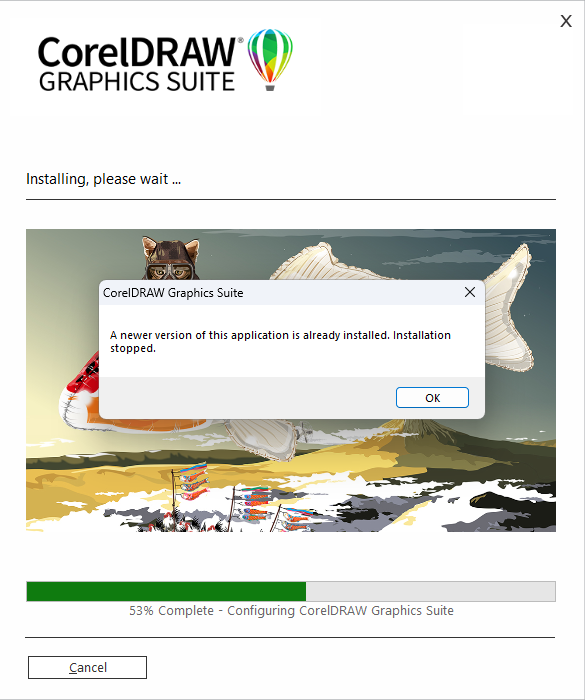
For example, this issue can occur if a user is installing CorelDRAW Graphics Suite 2022/2023 when CorelDRAW Graphics Suite 2025 is already installed on the same device. The error message "A newer version of this application is already installed. Installation stopped" appears as shown below:
Resolution
To ensure VBAs do not interfere with the installation process, please follow the steps provided below when installing CorelDRAW Graphics Suite:
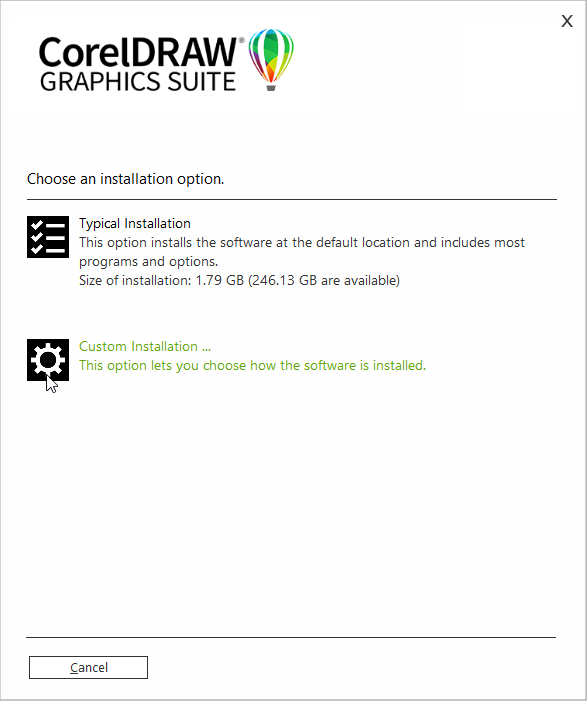
1. Start the CorelDRAW installation process and choose "Custom Installation"
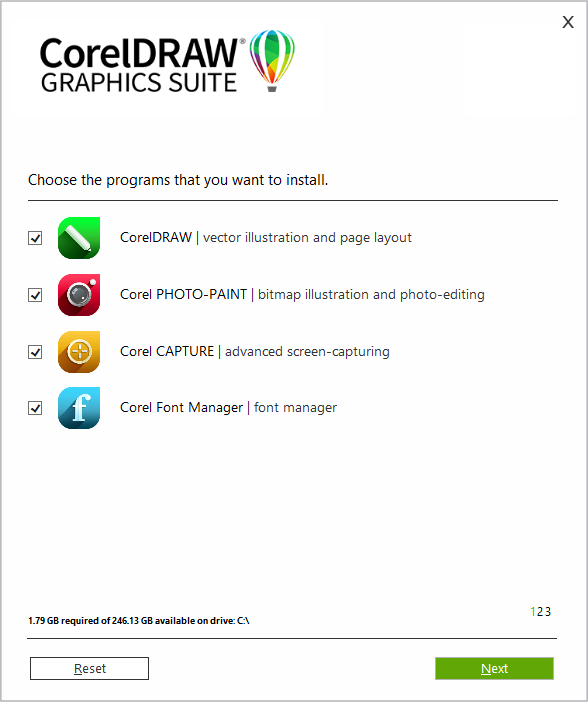
2. This step is optional - Select the specific application you wish to install. All are selected by default.
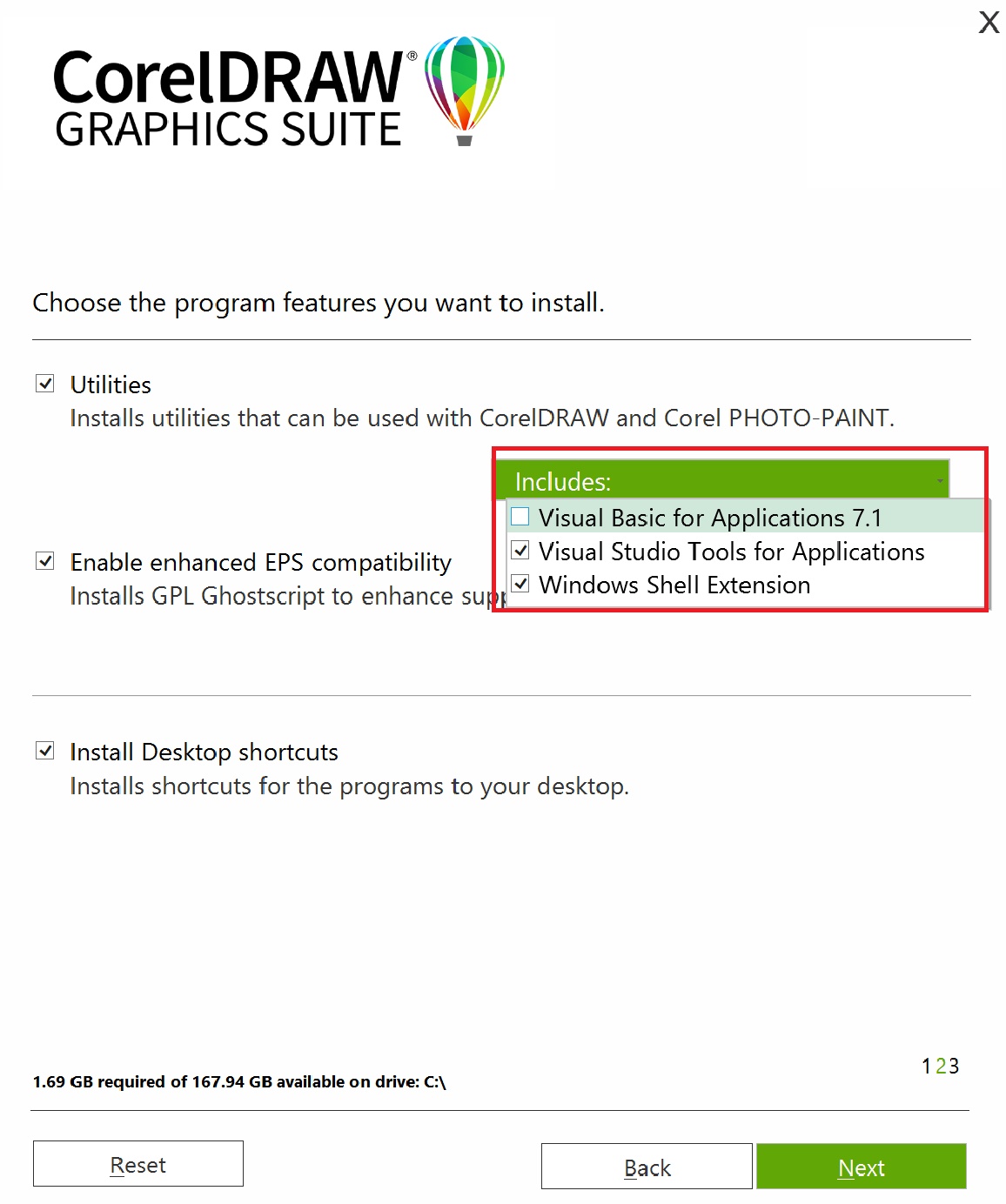
3. In Utilities section, Untick the Box for "Visual Basic for Applications 7.1", and click on the "NEXT" button.
4. Wait for the installation to complete and then open CorelDRAW.
If the issue persists or another issue arises, please contact our support team via our support portal: https://www.coreldraw.com/en/support/
Was this article helpful?
Tell us how we can improve it.